Showing posts with label how to. Show all posts

Tuesday, 11 February 2014

How To Change MAC Address Easily (Windows)


What is MAC address? Mac address is a physical serial number and every networking devices include your personal computer has a MAC address. MAC address also can give out other user on your network about your computer name and some info like computer model, network card type, and your Internet Protocal (IP) address. For more info : Google yourself..
Mac Address Changer
1. Download software :-
Links : [MEGA]
           [DROPBOX]
           [GDrive]

2. Install the software like usual. (Run as administrator)

3. Click NO for registration and you'll see a message "successfully installation".
 "Click NO"
"Click OK"

4. Locate the program installed in All Programs. AnalogX > AnonyMac > AnonyMac.exe (Run it)

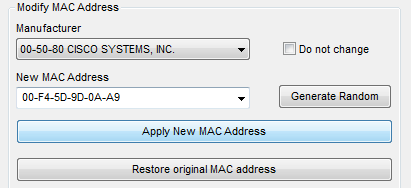
5. Setup with the adapter you're using to connect to internet. Restore to original if problem occurs.
"Use at your own risk"

Thursday, 6 February 2014

How to Make Colourful Link Blogger (Rainbow Link)


This works on Firefox since Chrome has some bugs in JavaScript.

1. Go to Dashboard > Layout > Add widget > HTML/JavaScript

2. Copy this code, click to view : [Click Here]

3. Paste the code in the HTML/JavaScrupt widget and save. Done!

Thursday, 19 December 2013

Optimize Images for Better Search Engine


Everybody busy about the content but ignore their images. This post will show you a little but important tips how to make use your images to increase traffic and marketing your blog in the web.

1. Rename your images by following your blog post title or permalink.

2. Batch rename your other images. Make sure do not use (SPACE) in the name instead use dash (-).
This will help Google understanding images easily.

Repeat this process on another blog post that has pictures, images. Bots, Spiders from Google will crawl to your website and images, the more data they get about a topic, the more chances of your website will be at the top of search result.

Watch This 
(by Google Engineer)

Wednesday, 18 December 2013

How To Remove Virus Manually (Simple Workaround)


This is basic of security tips you must know before using Linux or other open-sources system since many people nowadays like to use hard way to manage MINOR problems or viruses.

Learn how to use Task Manager & MSConfig. (Most people still don't know how to use this USEFUL tools in their computer)
The task manager and msconfig is the one you should use to check unknown (virus) process from running in your computer. Because viruses that run in your computer (the process can be seen on Task Manager and the startup can be seen on MSConfig)
To open task manager, you can use :-

- Shortcut search : taskmgr.exe
- Ctrl + Alt + Delete, click Task Manager
- Right click taskbar, click Task Manager

(the most basic but important is the Image Name (process) and Description)

1.  Right click for unknown process  (Mostly if unknown, their Description is EMPTY!) and open file location.

2. Once open, check the folder name, location, the application.
For example : the folder name is Intel(R).. so you know this software is for display and the process is CLEAN. 

3. Google the NAME! and delete! (if virus). Most process that having such a weird name you must try Google it first! before you end the process or delete the application immediately AND svchost.exe is YOUR's networking system, so don't be afraid of it UNLESS you mess up with firewall or networking stuff like open ports (rarely virus will infect this file).

4. Run msconfig.exe, go to Startup tab and do the research! (Google the name!)
Disable any updater in startup can improve connection speed :)

TROUBLESHOOTING :-
Is the application cannot be deleted? : [Click Here]
Is the Task Manager cannot run/open? : [Click Here]
Make sure hidden file, system file is set to show in folder setting.

My tips :- I've been using [Free Antivirus] for almost 6 ~ 7 years without getting any virus infection. 
-Why still people using paid AV? Well, not all people are smarter and AV is a part of world business.
-Before clicking a link, be aware of the URL that will lead you to the next destination.
-Before download/install unfamiliar software (seriously you can't get your pc faster anyway with some software) think twice and do the research (Google first) like PC Performer, that's just .. sigh*

-Before installing software, please.. (I know you click NEXT so fast) avoid from installing Toolbar! Especially :- Babylon, AVG. Lastly, use your eyes.. why still you click accept on this? :-
if you always like to click Accept on all thing, you might installing a spyware, bloatware or adware.

That's it. Be CAREFUL on the INTERNET. Somebody is watching you..(joking but not impossible)

Thursday, 12 December 2013

How to Check Computer Security Score


Check your computer security score easily using this software, this software will determine all sectors in your computer (Networking, Security, File Sharing, Backup, Management)

1. Download software.
Link 1 : [MEGA]
Link 2 : [Dropbox]
Link 3 : [Google Drive]

2. Install software (make sure run as administrator).

3. After that, the program will start and scan automatically.
This may took few minutes (if more than 5 minutes, try close (exit) the program and run again)
So, the score will be shown after finish scan.

To close the program, check your taskbar for the program icon, right click and click exit.


Wednesday, 11 December 2013

How To Create Local Web Server in Windows 8/8.1


Introducing the first in a series of simple to use yet powerful servers! This webserver is so easy to use, about the only thing you need to know how to do is drag and drop files, then just click on the 'Start' button, and your webserver is up and running.
1. Download software :- (size .zip 317KB)
Link 1 : [MEGA]
Link 2 : [Dropbox]
Link 3 : [Google Drive]


2. Install the web server, and click No (for registration).

3. Go to Start (Charm bar), find SimpleServer.WWW.exe

4. The above is your IP address (web server). After that, click "click here to set your web directory", select your .html and click Start..
> Creating HTML for beginner : [Click Here]
> Download HTML templates : [Click Here]

5.  If this appear, click (tick both option first) Allow access.

6. Now, minimize the program, check your IP Address, and insert it in URL browsers. For example : 192.168.175.132. You're done, this is viewable by all user in the local network.
This is plain .html, if you had directory it will be good like top cover.

Tutorial to create FTP : [Click Here]
Download HTML templates : [Click Here]
Watch Video (Fast Tutorial)

How To Create Local Web Server in Windows 7


Introducing the first in a series of simple to use yet powerful servers! This webserver is so easy to use, about the only thing you need to know how to do is drag and drop files, then just click on the 'Start' button, and your webserver is up and running.

1. Download software :- (size .zip 317KB)
Link 1 : [MEGA]
Link 2 : [Dropbox]
Link 3 : [Google Drive]

2. Install the web server, and click No (for registration).

3. Go to Start menu > All program > AnalogX > SimpleServer > WWW > SimpleServer.WWW.exe

-Run the program as administrator.


4. The above is your IP address (web server). After that, click "click here to set your web directory", select your .html and click Start.
> Creating HTML for beginner : [Click Here]
> Download HTML templates : [Click Here]

5. If this appear, click (tick both option first) Allow access.

6. Now, minimize the program, check your IP Address, and insert it in URL browsers. For example : 192.168.1.1. You're done, this is viewable by all user in the local network.
This is plain .html, if you had directory it will be good like top cover.

Tutorial to create FTP : [Click Here]
Download HTML templates : [Click Here]
Watch Video (Fast Tutorial)

How To Create HTML Files Easily


Creating HTML is easy, if you know what you doing. For people like me, I'm also not so good in editing html (still learning). So today, I'm gonna show you the easiest way for lazy people like me editing HTML.

(Offline Method)
1. Notepad (Well most beginner user don't know, right?)

-Type anything in the notepad and save as (select type : All files) and make sure the last input is .html at the name.


-This is the standard html editor.. in history. Nowadays, there's ton of software for editing html.


(Online Method)
2. quackit.com (Easier, fun and you can even create tables, form, etc in html)

-Edit, create anything, put everything to the html easily, they even gave out to you some sample templates if you want (at the option)

-After you've finished editing, check at left top corner, click on "Source" and select all, copy and paste to notepad and save as .html format. (see first picture)


What the use of this html? For Website :-
Windows 7/8 Web Server : [Click Here]
Windows 7/8 FTP Server : [Click Here]

Tuesday, 10 December 2013

The Best SEO in The World (Top Class Optimizer)


You has a nice title but still nobody visiting your website?

Has followed many SEO/SEM but still won't work?

Actually, there's a simple (yeah simple) and easy trick you can do. Most of the top domain website use.

This trick is hidden, secret but not anymore.
Continue reading.


Title Trick 
Example website : www.example.com
In Google Search : www.example.com - How to Cook                                           GET IT??
This trick will do : How to Cook - www.example.com
Because : people will insert keyword on Google, not our website name right? Unless our website is top.
This for example, the truth is (still my blog on the page 1 just scroll down a little bit lol)

Now follow this trick :- (I use blogspot so if you use others, try find the similarity)
1. Go to Template, Edit HTML/Template. (BACKUP ORIGINAL TEMPLATE FIRST if unsure)

2. Find this line :
<title><data:blog.pageTitle/></title>
3. Replace with this line :
<b:if cond='data:blog.pageType == "item"'> <title><data:blog.pageName/> |<data:blog.title/></title> <b:else/> <title><data:blog.pageTitle/></title> </b:if>
4. Preview first, if no error occurs then save it. Check your post. You're done.
One more thing, before post anything make sure :-

-Label the post correctly, example : SEO, SEM, How to.

-Use Permanent-link and make sure the URL is not too long (more than 10 words) because Google will detect as spam and not indexed.

-Insert your golden words in the Search Description, so peoples will attracted to visit your website.


Thanks for reading :)

How To Upload and Host HTML, CSS and Javascript Files


For those who want to share or host the HTML, CSS or Javascript to use in blog, widget, etc. Follow this simple trick (step by step with picture) using Google Drive (because it's free!)

1. Go to Google Drive and sign in using Google Account.


2. Upload your files (example : HTML, CSS or JS.) to the drive. Then, click on Share.

3. Click on Change and click on Public on the web, save.

4. Now, open the link in new tab.


Please READ carefully
5. After you open the link, COPY THE ID of the item. (example : 0Byc6OZ6ZvA6NZXl1eU9PWk9oQUE)

6. Now, change the URL and paste the ID you've copied : googledrive.com/host/PASTE-ID-HERE
You're done!
Tips :-
a) The link is permanent (unless you delete the item, move the item)
b) Save the link in notepad or another places because the link is not saved in your Google Drive.
c) If you don't want to save the link, make sure you know how to copy ID and use googledrive.com/host/
d) To use the link in widget or etc, use <script src="Link-Here" type="text/javascript"></script>

Watch Video