Showing posts with label internet. Show all posts

Tuesday, 10 December 2013

How To Upload and Host HTML, CSS and Javascript Files


For those who want to share or host the HTML, CSS or Javascript to use in blog, widget, etc. Follow this simple trick (step by step with picture) using Google Drive (because it's free!)

1. Go to Google Drive and sign in using Google Account.


2. Upload your files (example : HTML, CSS or JS.) to the drive. Then, click on Share.

3. Click on Change and click on Public on the web, save.

4. Now, open the link in new tab.


Please READ carefully
5. After you open the link, COPY THE ID of the item. (example : 0Byc6OZ6ZvA6NZXl1eU9PWk9oQUE)

6. Now, change the URL and paste the ID you've copied : googledrive.com/host/PASTE-ID-HERE
You're done!
Tips :-
a) The link is permanent (unless you delete the item, move the item)
b) Save the link in notepad or another places because the link is not saved in your Google Drive.
c) If you don't want to save the link, make sure you know how to copy ID and use googledrive.com/host/
d) To use the link in widget or etc, use <script src="Link-Here" type="text/javascript"></script>

Watch Video

Saturday, 7 December 2013

How To Install FileZilla Server in Windows


Easy tutorial (with pictures) how to install FileZilla Server in your Windows computer. Works with Windows 7/8/8.1
1. Download FZ Server.
Link 1 : [MEGA]
Link 2 : [Dropbox]
Link 3 : [Google Drive]

2. select I Agree.


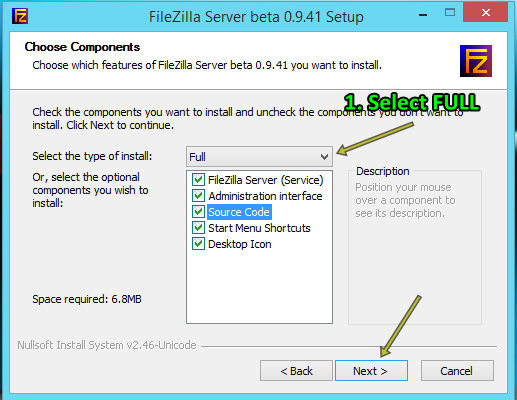
3. Select Full installation, Next >

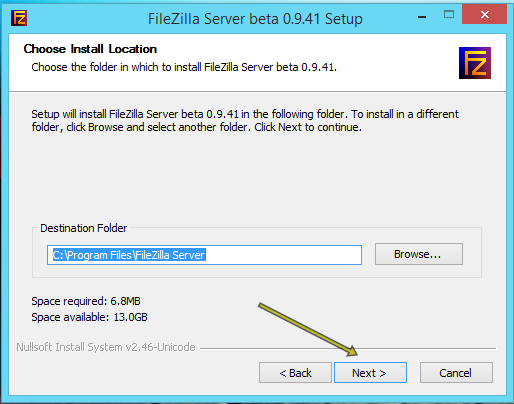
4. Next > (if you want to change the default location, edit the destination folder)

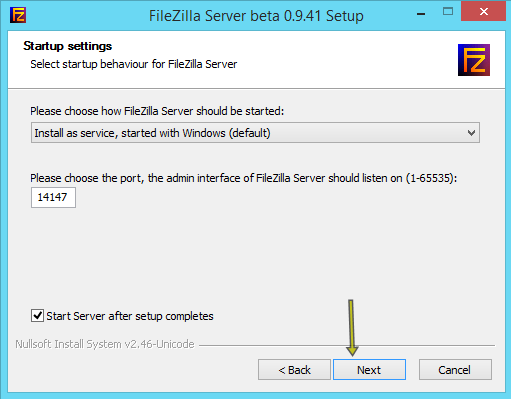
5. Next > (If you want to change the default port [must be opened port in Firewall] you can change the number)

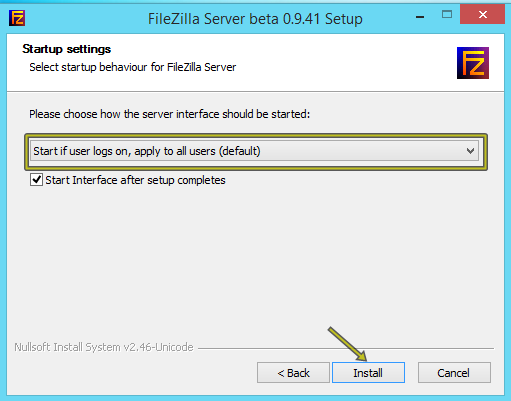
6. Next > or you can change the box (see picture) to set it to manually start. Default is automatic.

7. Complete installation. Close.

8. You can type the Administration password if you wanted to. So if the server start you must enter password.

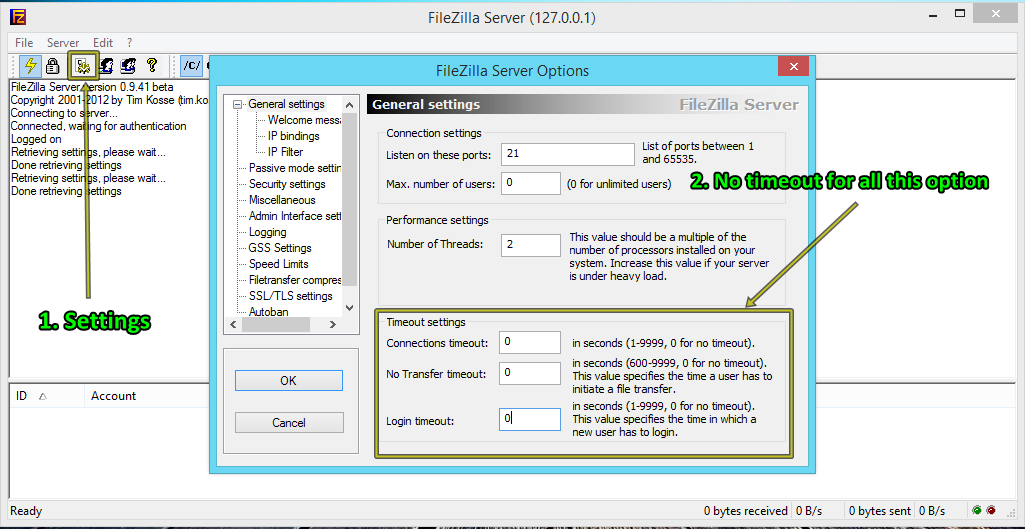
9. Go to settings, and change the default number to 0 or your preferences.

How to set-up FTP server in Windows 7 = [Click Here]
How to set-up FTP server in Windows 8/8.1 = [Click Here]