Showing posts with label local. Show all posts

Wednesday, 11 December 2013

How To Create Local Web Server in Windows 8/8.1


Introducing the first in a series of simple to use yet powerful servers! This webserver is so easy to use, about the only thing you need to know how to do is drag and drop files, then just click on the 'Start' button, and your webserver is up and running.
1. Download software :- (size .zip 317KB)
Link 1 : [MEGA]
Link 2 : [Dropbox]
Link 3 : [Google Drive]


2. Install the web server, and click No (for registration).

3. Go to Start (Charm bar), find SimpleServer.WWW.exe

4. The above is your IP address (web server). After that, click "click here to set your web directory", select your .html and click Start..
> Creating HTML for beginner : [Click Here]
> Download HTML templates : [Click Here]

5.  If this appear, click (tick both option first) Allow access.

6. Now, minimize the program, check your IP Address, and insert it in URL browsers. For example : 192.168.175.132. You're done, this is viewable by all user in the local network.
This is plain .html, if you had directory it will be good like top cover.

Tutorial to create FTP : [Click Here]
Download HTML templates : [Click Here]
Watch Video (Fast Tutorial)

How To Create Local Web Server in Windows 7


Introducing the first in a series of simple to use yet powerful servers! This webserver is so easy to use, about the only thing you need to know how to do is drag and drop files, then just click on the 'Start' button, and your webserver is up and running.

1. Download software :- (size .zip 317KB)
Link 1 : [MEGA]
Link 2 : [Dropbox]
Link 3 : [Google Drive]

2. Install the web server, and click No (for registration).

3. Go to Start menu > All program > AnalogX > SimpleServer > WWW > SimpleServer.WWW.exe

-Run the program as administrator.


4. The above is your IP address (web server). After that, click "click here to set your web directory", select your .html and click Start.
> Creating HTML for beginner : [Click Here]
> Download HTML templates : [Click Here]

5. If this appear, click (tick both option first) Allow access.

6. Now, minimize the program, check your IP Address, and insert it in URL browsers. For example : 192.168.1.1. You're done, this is viewable by all user in the local network.
This is plain .html, if you had directory it will be good like top cover.

Tutorial to create FTP : [Click Here]
Download HTML templates : [Click Here]
Watch Video (Fast Tutorial)

Sunday, 8 December 2013

How To Create Local FTP Server in Windows 8/8.1 (FileZilla)


Create a local FTP server in your Windows 8 or Windows 8.1 easily, so you can share files in your local network.
Technically you can use basic transfer setting but you won't have ftp:// : [Network Sharing]


1. Download FileZilla Server. [Tutorial How to Install FileZilla Server : [Click Here]
Link 1 : [MEGA]
Link 2 : [Dropbox]
Link 3 : [Google Drive]

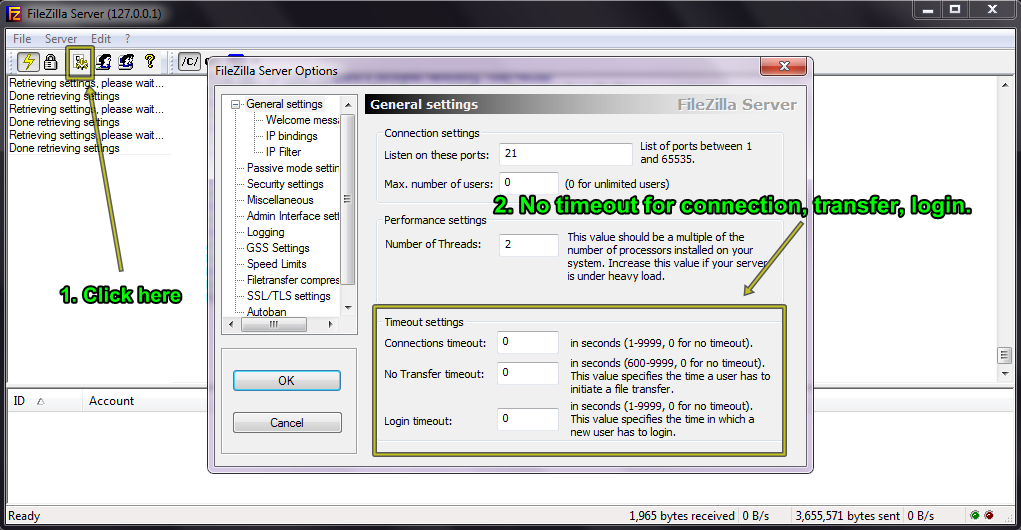
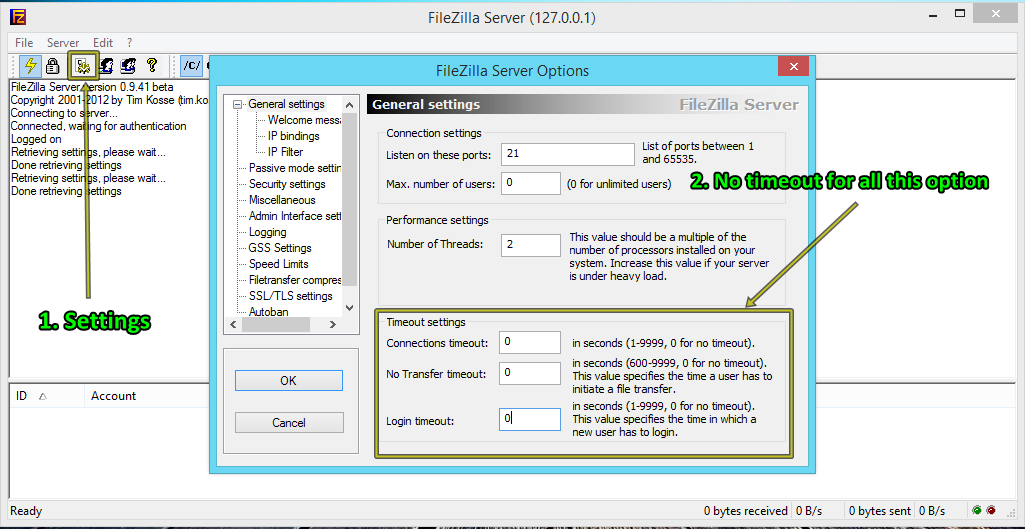
2. Install & run the program. Go to settings, set 0 for timeout settings (see picture) and click OK.

3. Now, create new group, give a name for the group and click OK.

4. Select Shared folders and Add folder (browse folder to share).
For example : I've used New Folder. A folder that I've created.
If you had multiple shared folder, choose one and click set as home dir. Click OK.

5. Now add new user, enter the name for login and select the group. Click OK.

6. To set password, tick password and enter password. Click OK.

7. Now check your IP Address or you can use your computer name.
For example : My ip address is " 192.168.175.132 " and my computer name is " WIN8VM ". So you use ftp://192.168.175.132 or ftp://win8vm in your browser URL and enter the username you've created earlier.
You're done. 
Troubleshooting : Cannot access?
Possible solution : Turn off firewall or allow port 21 in firewall.

Watch Video (Fast Guide)

How To Create Local FTP Server in Windows 7 (FileZilla)


Create a local FTP server in your Windows 7 easily, so you can share files in your local network.
Technically you can use basic transfer setting but you won't have ftp:// : [Network Sharing]

1. Download FileZilla Server. [Tutorial How to Install FileZilla Server : [Click Here]
Link 1 : [MEGA]
Link 2 : [Dropbox]
Link 3 : [Google Drive]

2. Install & run the program. Go to settings, set 0 for timeout settings (see picture) and click OK.

3. Now, create new group, give a name for the group and click OK.

4. Select Shared folders and Add folder (browse folder to share).
For example :
I've used Home Directory folder. A folder that I've created.

5. If you had multiple shared folder, choose one and click set as home dir. Click OK.

6. Now add new user, enter the name for login and select the group. Click OK.

7. To set password, tick password and enter password. Click OK.

8. Now check your IP Address or you can use your computer name.
For example : My ip address is " 192.168.1.1 " and my computer name is " cranberry ". So you use ftp://192.168.1.1 or ftp://cranberry in your browser URL and enter the username you've created earlier.
You're done. 
Troubleshooting : Cannot access?
Possible solution : Turn off firewall or allow port 21 in firewall.

Watch Video (Fast Guide)

Saturday, 7 December 2013

How To Install FileZilla Server in Windows


Easy tutorial (with pictures) how to install FileZilla Server in your Windows computer. Works with Windows 7/8/8.1
1. Download FZ Server.
Link 1 : [MEGA]
Link 2 : [Dropbox]
Link 3 : [Google Drive]

2. select I Agree.


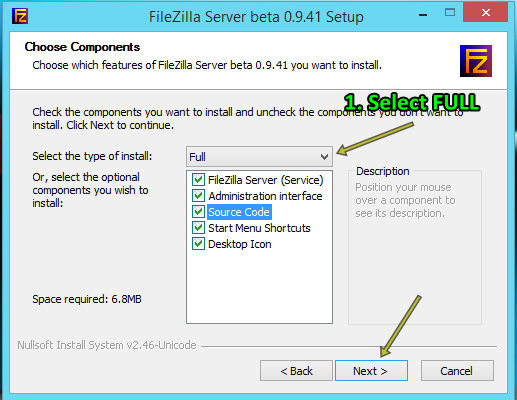
3. Select Full installation, Next >

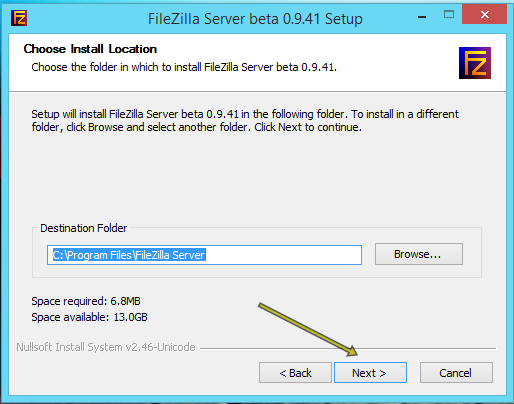
4. Next > (if you want to change the default location, edit the destination folder)

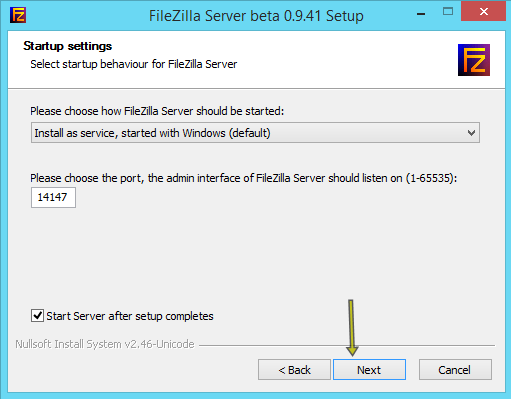
5. Next > (If you want to change the default port [must be opened port in Firewall] you can change the number)

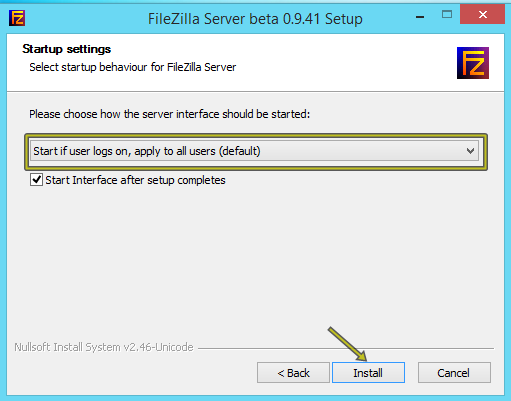
6. Next > or you can change the box (see picture) to set it to manually start. Default is automatic.

7. Complete installation. Close.

8. You can type the Administration password if you wanted to. So if the server start you must enter password.

9. Go to settings, and change the default number to 0 or your preferences.

How to set-up FTP server in Windows 7 = [Click Here]
How to set-up FTP server in Windows 8/8.1 = [Click Here]